
Inventory & Stack Management
-
- Identity Provider (IdP): The Foundation of Sastrify Insights
- Uncover SaaS Usage and Shadow IT with Identity Provider (IdP) Discovery
- Integrating HRIS to Enrich Identities & Insights
- Admin Guide: Deploying the Sastrify Chrome Extension
- Admin Guide: Deploying the Sastrify Microsoft Edge Extension
- Manual Installation Guide: Sastrify Chrome Browser Extension
- Manual Installation Guide: Sastrify Edge Browser Extension
- Setting renewal dates & reminders
- Assigning & Modifying Subscription Owners
- Uploading & Managing Your SaaS Documents in Sastrify
- Sastrify App Support: Get Help & Give Feedback
- Sastrify's commitment to security and privacy standards
- Integrating HRIS to Enrich Identities & Insights
-
- Capturing Subscription Details with Contract AI
- Adding a New Subscription Manually
- Slack Integration: Bringing Sastrify into Your Internal Communication
- How to bulk upload your invoices
- Automating Document Uploads via Email Forwarding
- Managing Your Notification Preferences
- Tools and Spend Importer: Bulk Upload & Visualization
- Tool Matching: Aligning ERP Data with Your Inventory
- Managing Collaboration with Custom Tasks
- Task Automation: Standardizing and Automating Routine Actions
-
- Workflows: Automate procurement processes with consistency
- Requests: Streamline procurement process and internal approval
- Get Procurement Support for New Purchases and Renewals
- How to submit and track Procurement Requests via Jira Integration
- Scope of service: Custom benchmarking & contract review
- Scope of service: Negotiation & renewal support
- Scope of service: Custom SaaS Optimization Advisory
- Purchase your SaaS through the SastriMarket
-
- Connecting Your ERP & Accounting Software
- Spend Import: Validate and fine-tune your imported spend data
- Export spend data from Candis to Sastrify
- Export spend data from Spendesk to Sastrify
- Export spend data from Pleo to Sastrify
- Export spend data from Moss to Sastrify
- Export spend data from DATEV to Sastrify
- Export spend data from Ramp to Sastrify
-
- Configuring Authentication & Access
- User Management: Managing Users and Platform Roles
- Configuring Microsoft SSO Authentication
- Configuring Okta SSO Authentication
- Configuring JumpCloud SSO Authentication
- Configuring Cisco Duo SSO Authentication
- Configuring Cloudflare SSO Authentication
- Configuring OneLogin SSO Authentication
- Having trouble logging in?
- Understanding user roles and permissions
-
- Okta M2M Integration Guide
- Accounting & ERP: Connecting NetSuite to Sastrify
- Accounting & ERP: How to connect Quickbooks
- Accounting & ERP: How to connect Microsoft Dynamics 365
- Accounting & ERP: How to connect Workday ERP
- Accounting & ERP: How to integrate Pleo with Sastrify
- HRIS: Connecting Officient to Sastrify
-
- ERP & Accounting Integration FAQs
- SSO / IDP Discovery Integration FAQs
- Browser Extension FAQs
- HRIS Integration FAQs
- Usage Analytics FAQs
- Contract AI & Subscription Details FAQs
- Tools and Spend Importer FAQs
- Invoices FAQs
- Achieved Savings FAQs
- Form component guide for Sastrify form builder
- What is SaaS and Sastrify's scope of work?
- Who receives the renewal alerts or reminders?
- How does Sastrify work with currencies?
- Is the spend data from accounting export always up-to-date?
- How to work with benchmark prices
- When and how to involve Sastrify in a contract evaluation or negotiation?
- How does Sastrify interact with SaaS vendors?
- How do you handle confidentiality clauses in vendor contracts?
- Why is contract data essential for benchmarking and negotiation support?
Tools and Spend Importer: Bulk Upload & Visualization Print
Modified on: Thu, 12 Feb, 2026 at 4:24 PM
While Sastrify thrives on automated integrations, the Tools and Spend Importer is the perfect flexible alternative for organizations that manage their SaaS stack via spreadsheets or specialized accounting exports (e.g., DATEV, Spendesk, Pleo, or Brex).
Two Ways to Import
Before you begin, identify which type of data you are uploading:
Subscription List: Best for migrating your existing SaaS tracker (Excel/Google Sheets) into Sastrify to build your initial Tool Stack.
Accounting Data: Best for pulling spend details from your ERP or accounting software to track historical costs in Sastrify.
Step-by-Step Import Guide
Step 1: Upload & Map
Go to Inventory > Tool Stack > Actions > Upload.
Drag and drop your file. Sastrify supports
XLS(X),CSV,TSV,XML, orJSON.Match the headers in your file (e.g., "Supplier Name") to the required Sastrify fields (e.g., "Vendor").
Use the Sastrify templates (linked at the bottom of this article) to skip the mapping step entirely.
- Review your entries. This step allows you to make any necessary data or value adjustments or to correct any errors found by the importer.
- Click "Complete Upload" to finalize step 1.

Step 2: Vendor Matching
- Match the vendors from your file to Sastrify’s global database of 20,000+ products.
- Manual Match: If a vendor name in your file (e.g., "Zoom.us") isn't automatically recognized, use the dropdown menu to find the correct match.
- Custom Tools: If a tool isn't in our database, you can choose to create a "Custom Subscription."
- Click "Complete Review" to finalize step 2.

Step 3: Confirm & Import
- Review your data for any errors flagged by the system.
- Click Confirm and Import. The process may take a few minutes depending on file size. You will be redirected to your updated Tool Stack once finished.
Required Data Fields & Formatting
To ensure a successful upload, please format your data according to these rules:
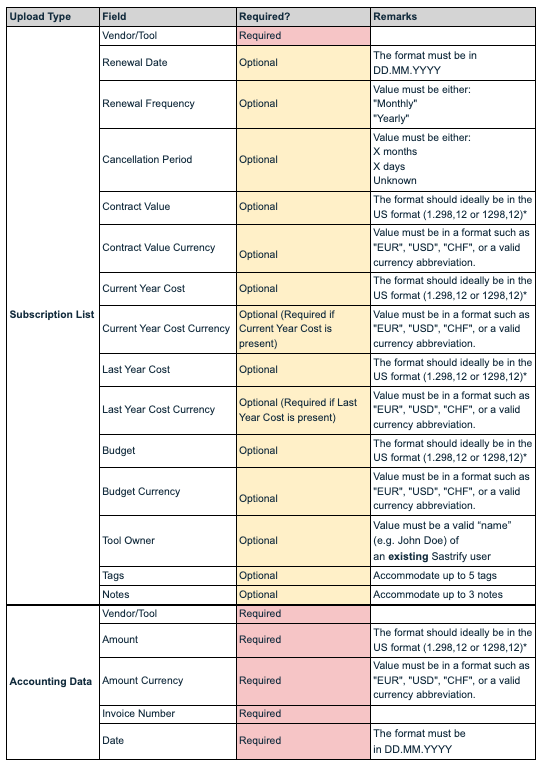
* Although the US format is the default format of the platform, the importer also accepts an alternative format, such as the EU/DE currency format.
Pro-Tips for a Clean Import
- Format Dates First: Most import errors are caused by incorrect date formats. Ensure your spreadsheet columns are set to DD.MM.YYYY before exporting to CSV.
- Accounting Exports: If you are exporting from a tool like DATEV or Moss, do not delete columns even if they are empty; Sastrify's mapper often recognizes the standard export structure.
- One Step at a Time: If you have a massive file (thousands of lines), try uploading a small "test batch" of 5–10 rows first to ensure your mapping is correct.
Frequently Asked Questions
Please refer to the Tools and Spend Importer FAQ page for a complete list of frequently asked questions
Did you find it helpful? Yes No
Send feedback