
Inventory & Stack Management
-
- Identity Provider (IdP): The Foundation of Sastrify Insights
- Uncover SaaS Usage and Shadow IT with Identity Provider (IdP) Discovery
- Integrating HRIS to Enrich Identities & Insights
- Admin Guide: Deploying the Sastrify Chrome Extension
- Admin Guide: Deploying the Sastrify Microsoft Edge Extension
- Manual Installation Guide: Sastrify Chrome Browser Extension
- Manual Installation Guide: Sastrify Edge Browser Extension
- Setting renewal dates & reminders
- Assigning & Modifying Subscription Owners
- Uploading & Managing Your SaaS Documents in Sastrify
- Sastrify App Support: Get Help & Give Feedback
- Sastrify's commitment to security and privacy standards
- Integrating HRIS to Enrich Identities & Insights
-
- Capturing Subscription Details with Contract AI
- Adding a New Subscription Manually
- Slack Integration: Bringing Sastrify into Your Internal Communication
- How to bulk upload your invoices
- Automating Document Uploads via Email Forwarding
- Managing Your Notification Preferences
- Tools and Spend Importer: Bulk Upload & Visualization
- Tool Matching: Aligning ERP Data with Your Inventory
- Managing Collaboration with Custom Tasks
- Task Automation: Standardizing and Automating Routine Actions
-
- Workflows: Automate procurement processes with consistency
- Requests: Streamline procurement process and internal approval
- Get Procurement Support for New Purchases and Renewals
- How to submit and track Procurement Requests via Jira Integration
- Scope of service: Custom benchmarking & contract review
- Scope of service: Negotiation & renewal support
- Scope of service: Custom SaaS Optimization Advisory
- Purchase your SaaS through the SastriMarket
-
- Connecting Your ERP & Accounting Software
- Spend Import: Validate and fine-tune your imported spend data
- Export spend data from Candis to Sastrify
- Export spend data from Spendesk to Sastrify
- Export spend data from Pleo to Sastrify
- Export spend data from Moss to Sastrify
- Export spend data from DATEV to Sastrify
- Export spend data from Ramp to Sastrify
-
- Configuring Authentication & Access
- User Management: Managing Users and Platform Roles
- Configuring Microsoft SSO Authentication
- Configuring Okta SSO Authentication
- Configuring JumpCloud SSO Authentication
- Configuring Cisco Duo SSO Authentication
- Configuring Cloudflare SSO Authentication
- Configuring OneLogin SSO Authentication
- Having trouble logging in?
- Understanding user roles and permissions
-
- Okta M2M Integration Guide
- Accounting & ERP: Connecting NetSuite to Sastrify
- Accounting & ERP: How to connect Quickbooks
- Accounting & ERP: How to connect Microsoft Dynamics 365
- Accounting & ERP: How to connect Workday ERP
- Accounting & ERP: How to integrate Pleo with Sastrify
- HRIS: Connecting Officient to Sastrify
-
- ERP & Accounting Integration FAQs
- SSO / IDP Discovery Integration FAQs
- Browser Extension FAQs
- HRIS Integration FAQs
- Usage Analytics FAQs
- Contract AI & Subscription Details FAQs
- Tools and Spend Importer FAQs
- Invoices FAQs
- Achieved Savings FAQs
- Form component guide for Sastrify form builder
- What is SaaS and Sastrify's scope of work?
- Who receives the renewal alerts or reminders?
- How does Sastrify work with currencies?
- Is the spend data from accounting export always up-to-date?
- How to work with benchmark prices
- When and how to involve Sastrify in a contract evaluation or negotiation?
- How does Sastrify interact with SaaS vendors?
- How do you handle confidentiality clauses in vendor contracts?
- Why is contract data essential for benchmarking and negotiation support?
Capturing Subscription Details with Contract AI Print
Modified on: Thu, 12 Feb, 2026 at 2:41 PM
The Summary Tab is your central repository for every subscription in your Sastrify stack. It consolidates pricing, products, renewal terms, and vendor contact information into a single, easily accessible view—eliminating the need to dig through PDFs during renewals or audits.
Each Summary Tab includes Subscription Details, which store core contract information such as value, products, and renewal terms. Say goodbye to manual data entry: Contract AI automatically extracts key details from your legal documents, ensuring your platform always reflects your actual contracts.
SaaS Renewal Best Practice: To find the renewal terms, refer to essential documents like subscription contracts, order forms, and occasionally invoices. Suppliers have different languages in their terms and conditions. Work with your legal team to review these and figure out when tools renew, if there are auto-renewals, and the cancellation notice periods.
Automatically add/update subscription details using Contract AI
Manual data entry is a thing of the past. Contract AI automatically extracts data from your legal documents, ensuring your platform is always aligned with your actual contracts.
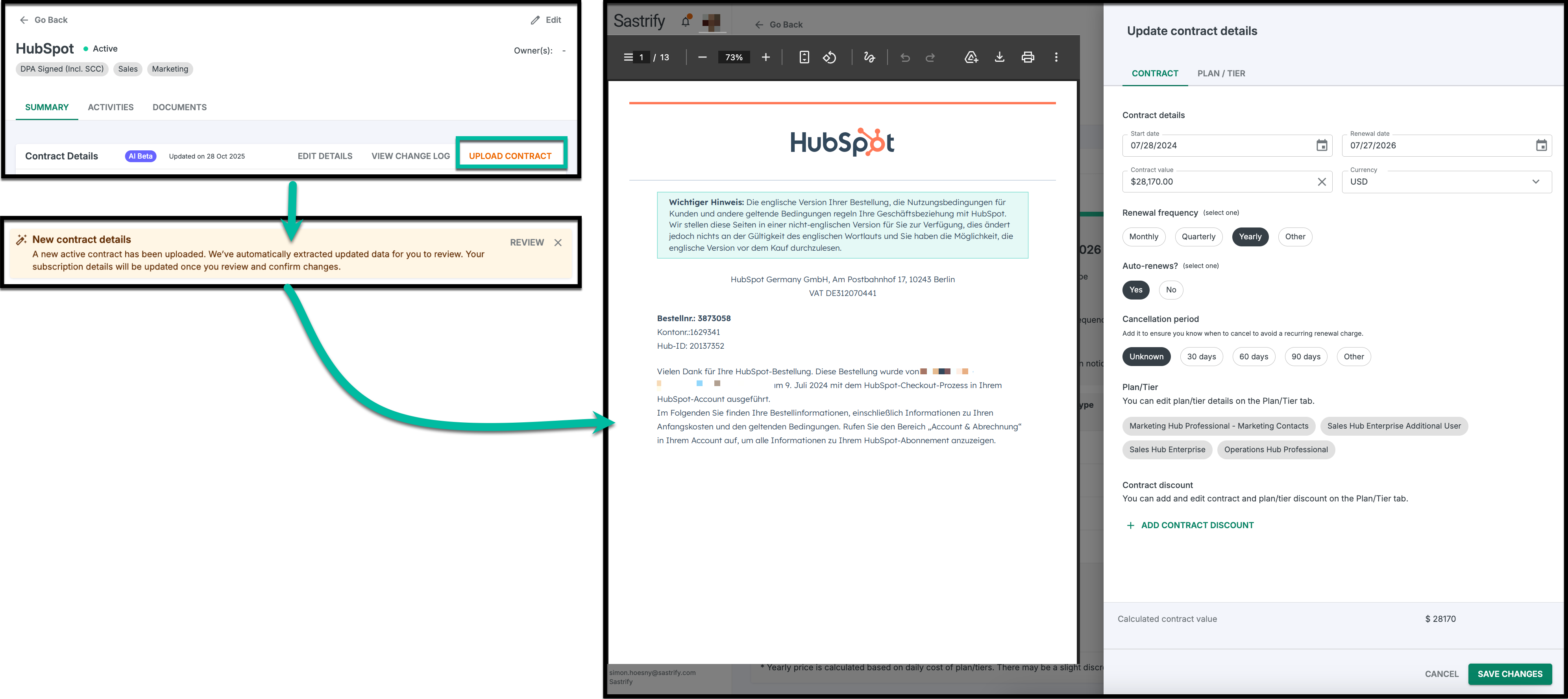
How to use Contract AI:
- Go to Inventory > Suppliers & Products > Subscriptions Tab, and click on a specific subscription.
In the Subscription Details tile, click “Upload Contract” or drag and drop your contract into the designated upload area.
Select a legible PDF. The AI takes 1–3 minutes to analyze the document.
Contract AI will process the PDF to extract: contract start and end dates, contract value, renewal frequency, and line item details (product name, quantity, list price, and discounts, if applicable)
A verification banner will appear. Click Review to see a side-by-side view of your PDF and the extracted data.
Check the Contract and Products tabs. You can manually edit any field if the document's formatting was unique.
Click Save Changes to populate the tab.
Best Practices for Uploading Contracts

File Format: Use clear, high-resolution PDF documents.
Recency: Always upload the most recent contract, especially after a renewal.
Review: Validate extracted data and make manual adjustments as needed.
Manually edit subscription details
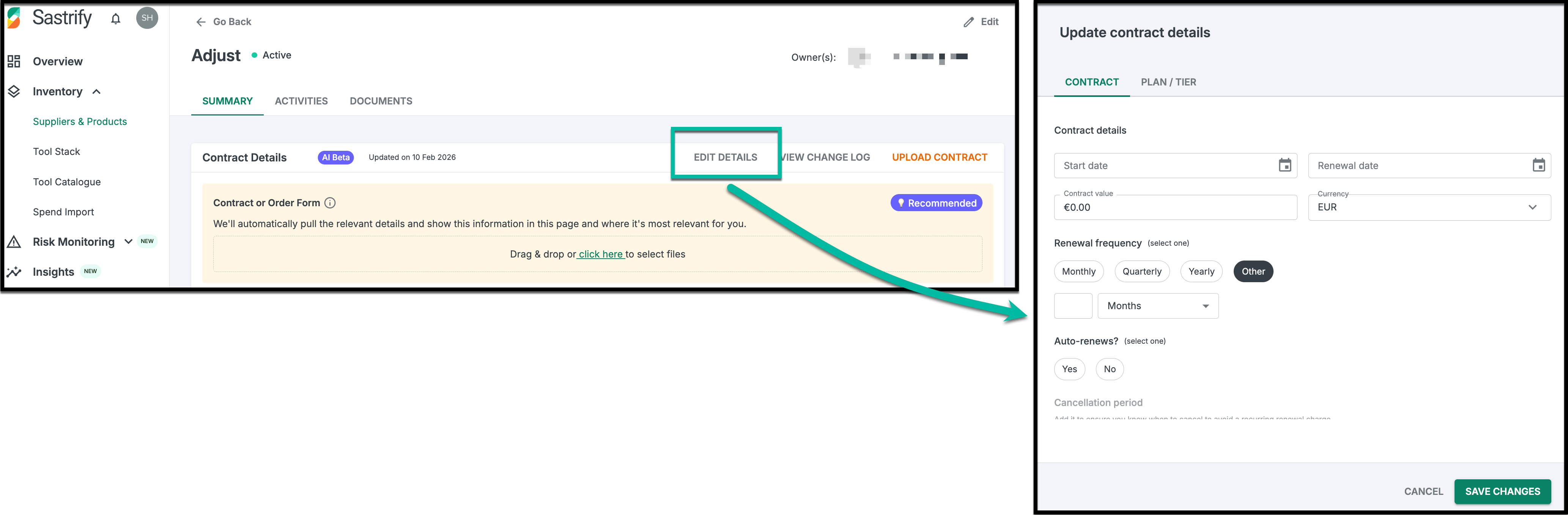
For subscriptions without a PDF, or for quick adjustments, you can manage details manually by clicking the “Edit Details” button in the upper-right corner of the tile.
Add or update information, then click “Save Changes” to store your entries.
Contract Level: Define start/end dates, renewal frequency, and cancellation periods.
Product Level: List individual services or licenses. Sastrify automatically calculates totals based on quantity and list price.
Auto-Calculations: Enter a discount as a percentage or flat amount, and Sastrify will instantly compute the corresponding values.
Add/update additional information
The Additional Information section helps you track the extra elements of your SaaS subscriptions.
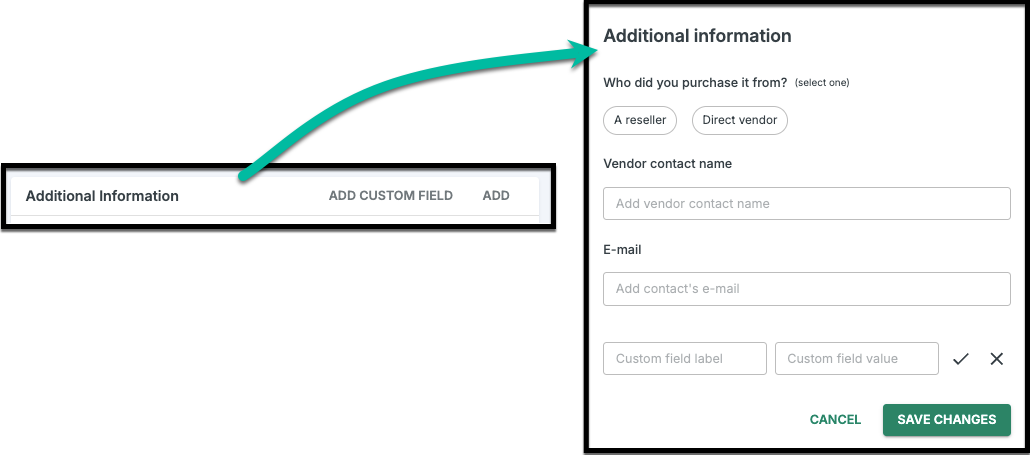
By default, this section includes input fields to specify whether you buy direct or through a reseller, along with space to store supplier contact details. You can also add and save more fields using custom fields to capture additional information as needed.
To add or update additional information:
- Click the "Add" or "Edit" button.
- Update the supplier details.
- Use the custom field to store and track any additional information by defining a custom label and its corresponding value. You can add a maximum of four custom fields.
- Complete and save your entries by clicking the "Save Changes" button.
When you create and save a custom field for one subscription, it automatically appears in the Additional Information section of all subscriptions in your stack. This ensures consistent tracking of key details—like vendor type or internal classifications—without the need to repeat the same process to cover your entire stack.
Any custom fields you add will also be available as columns in your subscription list with the Inventory page. You can display them by clicking the “Show/Hide Columns” icon and enabling the toggles for the column names, which will appear exactly as you specified when creating the custom fields.
To prevent accidental data loss, only your Sastrify admins can delete custom fields.Frequently Asked Questions
Please refer to the Contract AI & Subscription Details FAQ page for a complete list of frequently asked questions.
Did you find it helpful? Yes No
Send feedback