
Getting Started
-
- Identity Provider (IdP): The Foundation of Sastrify Insights
- Uncover SaaS Usage and Shadow IT with Identity Provider (IdP) Discovery
- Integrating HRIS to Enrich Identities & Insights
- Admin Guide: Deploying the Sastrify Chrome Extension
- Admin Guide: Deploying the Sastrify Microsoft Edge Extension
- Manual Installation Guide: Sastrify Chrome Browser Extension
- Manual Installation Guide: Sastrify Edge Browser Extension
- Setting renewal dates & reminders
- Assigning & Modifying Subscription Owners
- Uploading & Managing Your SaaS Documents in Sastrify
- Sastrify App Support: Get Help & Give Feedback
- Sastrify's commitment to security and privacy standards
- Integrating HRIS to Enrich Identities & Insights
-
- Capturing Subscription Details with Contract AI
- Adding a New Subscription Manually
- Slack Integration: Bringing Sastrify into Your Internal Communication
- How to bulk upload your invoices
- Automating Document Uploads via Email Forwarding
- Managing Your Notification Preferences
- Tools and Spend Importer: Bulk Upload & Visualization
- Tool Matching: Aligning ERP Data with Your Inventory
- Managing Collaboration with Custom Tasks
- Task Automation: Standardizing and Automating Routine Actions
-
- Workflows: Automate procurement processes with consistency
- Requests: Streamline procurement process and internal approval
- Get Procurement Support for New Purchases and Renewals
- How to submit and track Procurement Requests via Jira Integration
- Scope of service: Custom benchmarking & contract review
- Scope of service: Negotiation & renewal support
- Scope of service: Custom SaaS Optimization Advisory
- Purchase your SaaS through the SastriMarket
-
- Connecting Your ERP & Accounting Software
- Spend Import: Validate and fine-tune your imported spend data
- Export spend data from Candis to Sastrify
- Export spend data from Spendesk to Sastrify
- Export spend data from Pleo to Sastrify
- Export spend data from Moss to Sastrify
- Export spend data from DATEV to Sastrify
- Export spend data from Ramp to Sastrify
-
- Configuring Authentication & Access
- User Management: Managing Users and Platform Roles
- Configuring Microsoft SSO Authentication
- Configuring Okta SSO Authentication
- Configuring JumpCloud SSO Authentication
- Configuring Cisco Duo SSO Authentication
- Configuring Cloudflare SSO Authentication
- Configuring OneLogin SSO Authentication
- Having trouble logging in?
- Understanding user roles and permissions
-
- Okta M2M Integration Guide
- Accounting & ERP: Connecting NetSuite to Sastrify
- Accounting & ERP: How to connect Quickbooks
- Accounting & ERP: How to connect Microsoft Dynamics 365
- Accounting & ERP: How to connect Workday ERP
- Accounting & ERP: How to integrate Pleo with Sastrify
- HRIS: Connecting Officient to Sastrify
-
- ERP & Accounting Integration FAQs
- SSO / IDP Discovery Integration FAQs
- Browser Extension FAQs
- HRIS Integration FAQs
- Usage Analytics FAQs
- Contract AI & Subscription Details FAQs
- Tools and Spend Importer FAQs
- Invoices FAQs
- Achieved Savings FAQs
- Form component guide for Sastrify form builder
- What is SaaS and Sastrify's scope of work?
- Who receives the renewal alerts or reminders?
- How does Sastrify work with currencies?
- Is the spend data from accounting export always up-to-date?
- How to work with benchmark prices
- When and how to involve Sastrify in a contract evaluation or negotiation?
- How does Sastrify interact with SaaS vendors?
- How do you handle confidentiality clauses in vendor contracts?
- Why is contract data essential for benchmarking and negotiation support?
Identity Provider (IdP): The Foundation of Sastrify Insights Print
Modified on: Fri, 17 Jul, 2026 at 11:25 AM
To answer the critical question, "Who is using what?", Sastrify relies on a rock-solid foundation of identity data. By connecting your Identity Provider (IdP)—such as Okta, Google Workspace, or Microsoft Entra ID—you establish a Single Source of Truth that powers usage tracking, Shadow IT discovery, and departmental enrichment.
IN THIS ARTICLE
- The Three Pillars of Identity
- Why Connecting an IdP is Mandatory
- How to Connect Your Identity Provider
- Data Retrieval & Handling
- What's Next?
- Frequently Asked Questions
The Three Pillars of Identity
Under Sastrify’s "End-to-End" identity model, we distinguish between three interconnected concepts:
Identities (The Foundation): Created exclusively via your IdP sync. These are the "anchors" for all usage data. They cannot be manually added or edited.
Employees (The Enrichment): Sourced from your HRIS (e.g., Workday). These enrich your Identities with metadata like departments and cost centers.
Sastrify Users (The Stakeholders): Application accounts with specific permissions (Admin, Viewer, etc.) who can own subscriptions and perform actions within the platform.
Why Connecting an IdP is Mandatory
Connecting your IdP is the first step in setting up your Sastrify environment, as it is the mandatory anchor for the following features:
Browser Extension: You cannot deploy the extension or collect usage data without an active IdP connection.
HRIS: While you can connect an HRIS first, the data remains "locked" or "inactive" until an IdP is connected to provide the matching identities.
Insights: All activity (login events, clicks, etc.) must be mapped to a verified IdP identity to appear in your Insights dashboard.
How to Connect Your Identity Provider
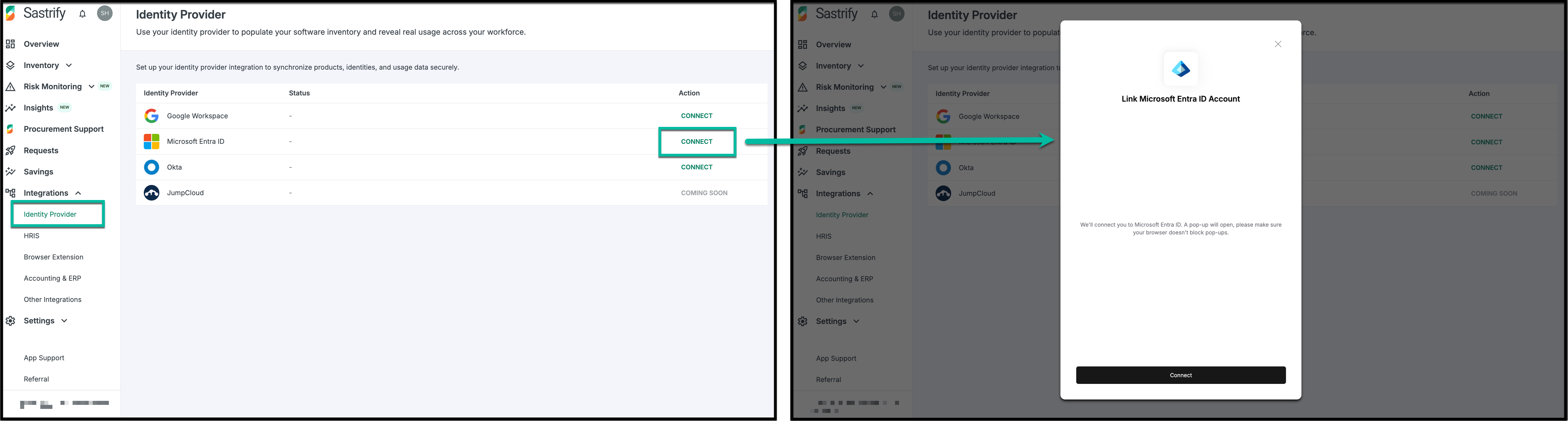
Requirement: To enable this integration, you must have Admin permissions in both Sastrify and your selected IdP.
Navigate to Integrations > Identity Provider.
Select your provider (e.g., Okta, Google Workspace, Microsoft Entra ID), and click Connect.
- Follow the authentication steps (these vary by provider).
Google/Microsoft: Sign in and accept the authorization prompt.
Okta: Enter your OAuth 2.0 app credentials. See our Okta Step-by-Step Guide for details.
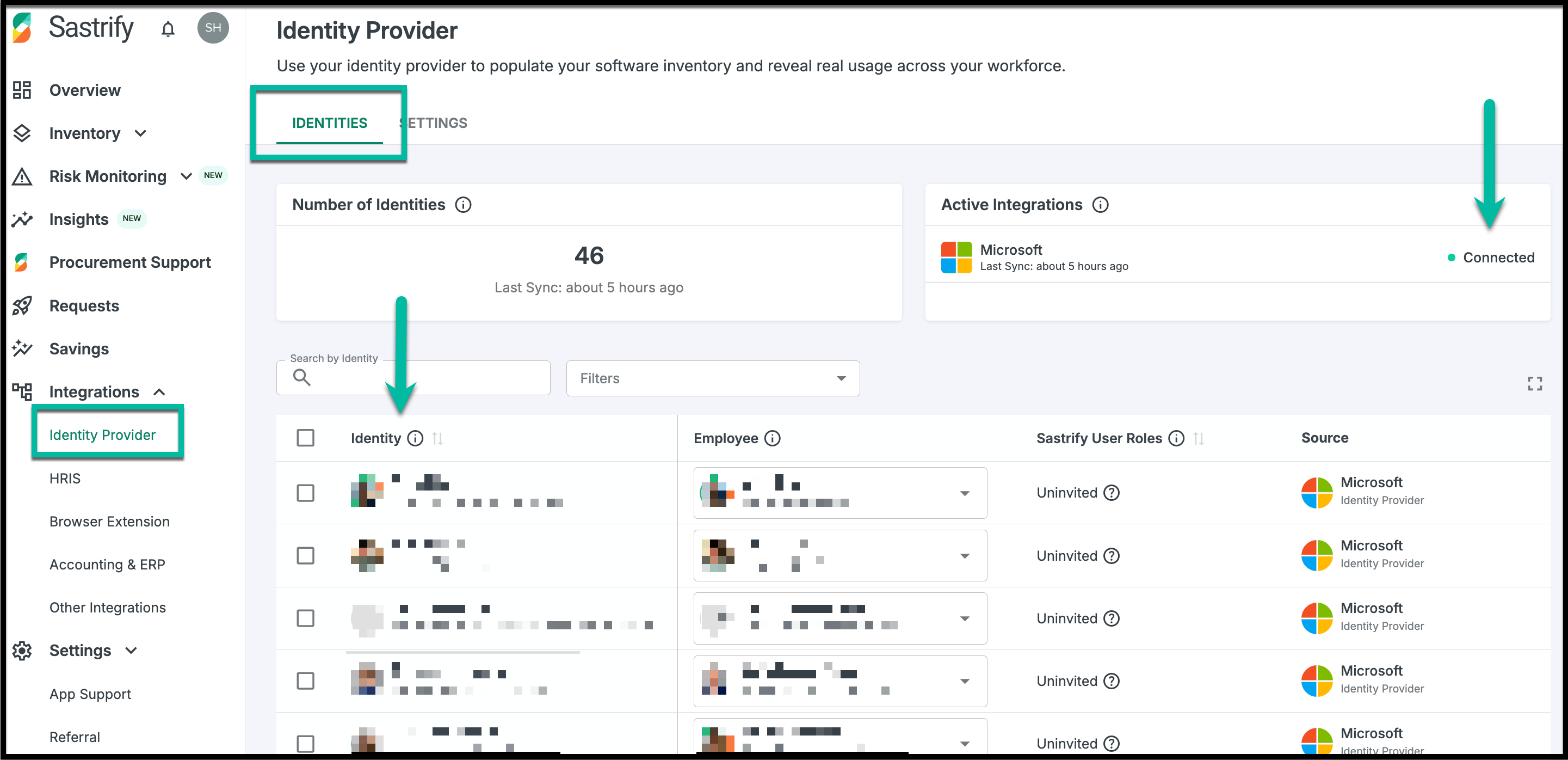
Once connected, your status will appear as “Connected” on the IdP integration setting page, and Sastrify will perform an initial sync to pull your identities.
View and verify your imported list under the Identities tab within the integration page.
Data Retrieval & Handling
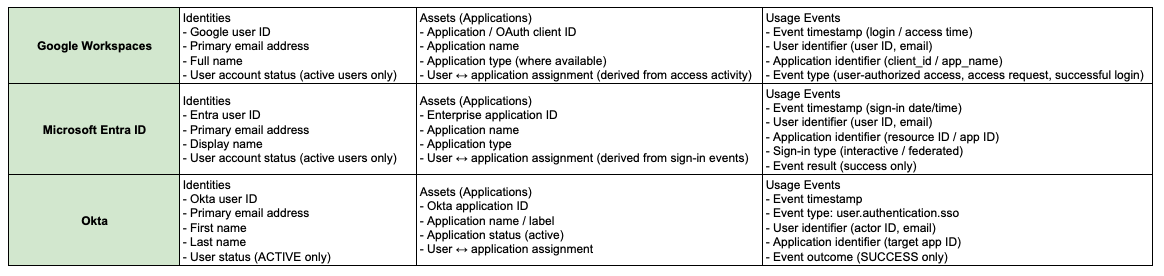
Sastrify performs a sync once per week, focusing on three data types: Identities, Assets (Applications), and Usage Events. For a detailed breakdown of the data retrieved by each Identity Provider (IdP) integration, please refer to the following:
In doing so, we maintain the following approaches to data handling:
- User identifiers are cryptographically hashed to ensure anonymization.
- Only whitelisted business SaaS applications are monitored. We apply automatic exclusion of certain domains, including career sites, job boards, and non-business application URLs.
- Data is transmitted securely via HTTPS, using OAuth for authentication.
- Only essential usage metrics are gathered to support organizational analytics.
Core Business Rules:
Source of Truth: If the IdP is disconnected, all dependent data (Usage, HRIS enrichment) becomes invalid. Reconnecting the IdP is required to restore these insights.
No Manual Creation: To ensure data integrity, identities can only be created via IdP sync.
What's Next?
First Order of Business: Enrich with HRIS
- Connect your HRIS to add department and cost center context to your identities. Refer to the HRIS Setup Guide for step-by-step instructions.
- Next, navigate to Integrations > Identities to review the automatic matching between identities from your IdP and employees from your HRIS. Sastrify automatically matches records based on identical email addresses. You can manually review, adjust matches, and link any unmatched identities as needed.

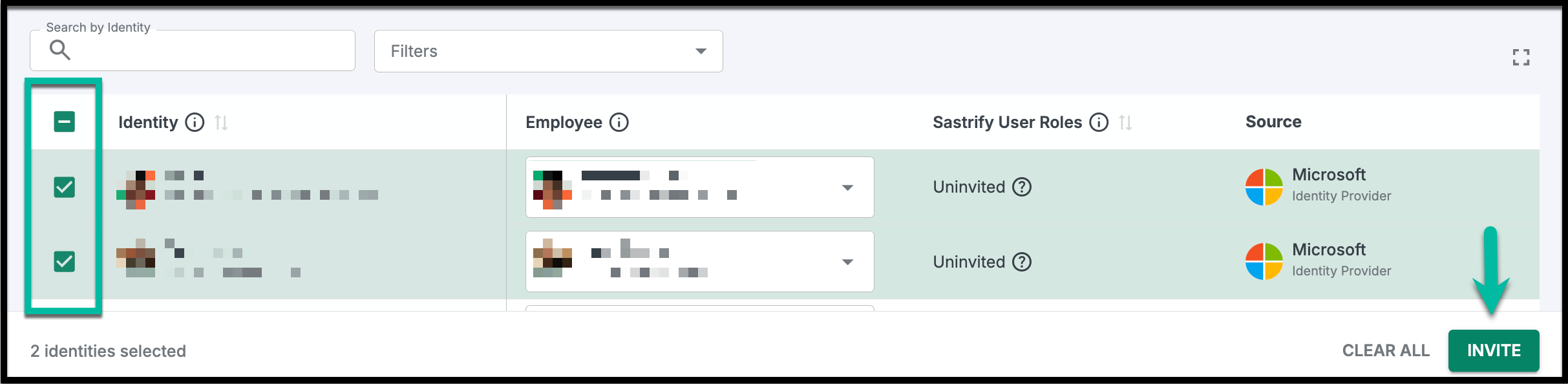
- Finally, invite identities to Sastrify. Select the checkbox next to the identity (individually or in bulk), then click Invite to grant access.
Now that your foundation is set, follow this path to unlock the full power of the platform:
- Deploy the Extension: Roll out the browser extension to capture deep usage data and uncover Shadow IT across your organization.
- Monitor the Shadow IT Radar: Navigate to Risk Monitoring > Shadow IT Radar to review, approve, or sanction newly discovered assets. See the Radar Guide for detailed instructions.
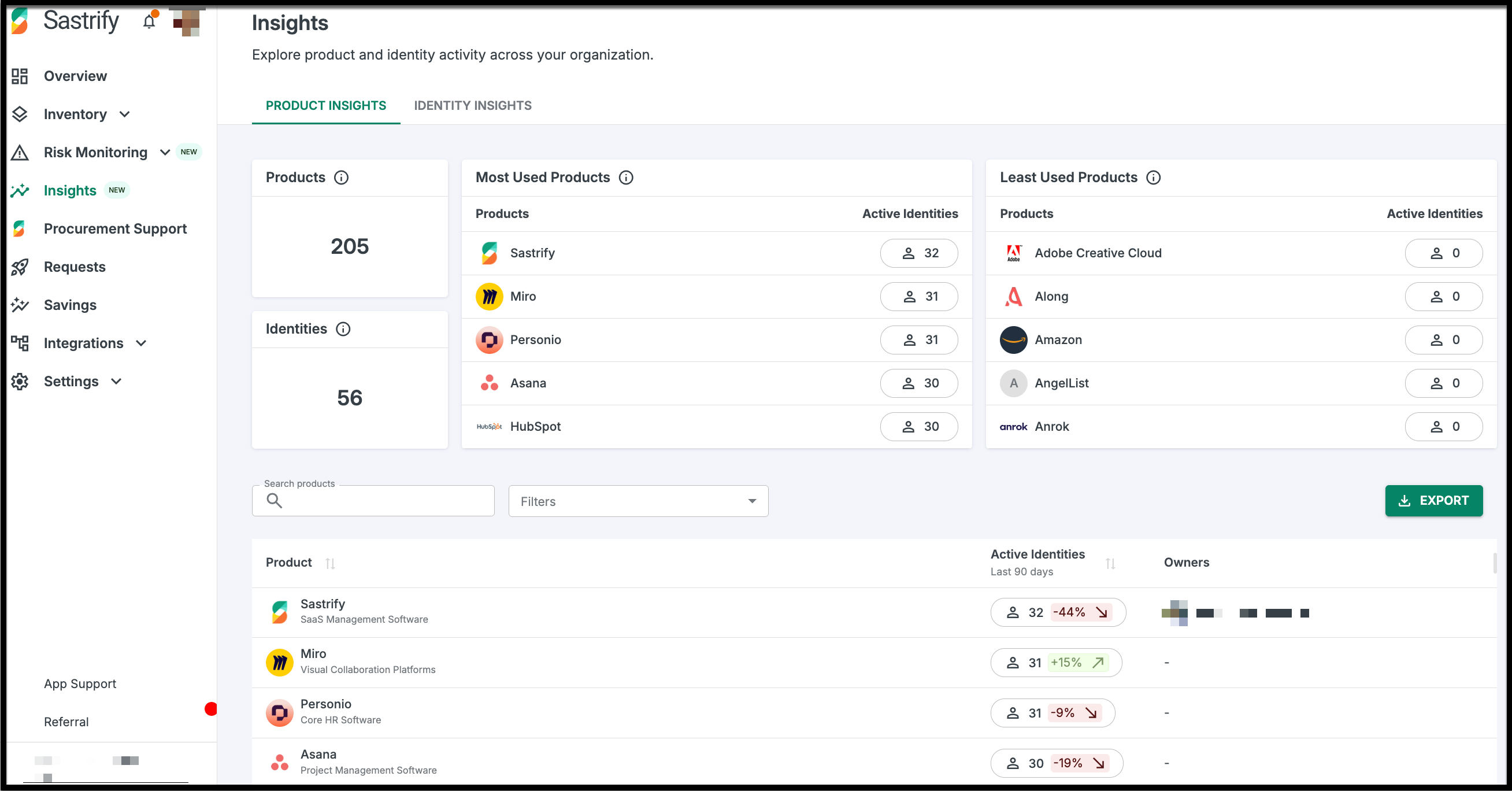
- Analyze Insights: Visit the Insights page to visualize software activity by identity, department, and usage status. Refer to the Insights Guide to learn how to navigate the feature.
Frequently Asked Questions
Please refer to the Identity Provider (IdP) Integration FAQ page for a complete list of frequently asked questions
Did you find it helpful? Yes No
Send feedback