
Inventory & Stack Management
-
- Identity Provider (IdP): The Foundation of Sastrify Insights
- Uncover SaaS Usage and Shadow IT with Identity Provider (IdP) Discovery
- Integrating HRIS to Enrich Identities & Insights
- Admin Guide: Deploying the Sastrify Chrome Extension
- Admin Guide: Deploying the Sastrify Microsoft Edge Extension
- Manual Installation Guide: Sastrify Chrome Browser Extension
- Manual Installation Guide: Sastrify Edge Browser Extension
- Setting renewal dates & reminders
- Assigning & Modifying Subscription Owners
- Uploading & Managing Your SaaS Documents in Sastrify
- Sastrify App Support: Get Help & Give Feedback
- Sastrify's commitment to security and privacy standards
- Integrating HRIS to Enrich Identities & Insights
-
- Capturing Subscription Details with Contract AI
- Adding a New Subscription Manually
- Slack Integration: Bringing Sastrify into Your Internal Communication
- How to bulk upload your invoices
- Automating Document Uploads via Email Forwarding
- Managing Your Notification Preferences
- Tools and Spend Importer: Bulk Upload & Visualization
- Tool Matching: Aligning ERP Data with Your Inventory
- Managing Collaboration with Custom Tasks
- Task Automation: Standardizing and Automating Routine Actions
-
- Workflows: Automate procurement processes with consistency
- Requests: Streamline procurement process and internal approval
- Get Procurement Support for New Purchases and Renewals
- How to submit and track Procurement Requests via Jira Integration
- Scope of service: Custom benchmarking & contract review
- Scope of service: Negotiation & renewal support
- Scope of service: Custom SaaS Optimization Advisory
- Purchase your SaaS through the SastriMarket
-
- Connecting Your ERP & Accounting Software
- Spend Import: Validate and fine-tune your imported spend data
- Export spend data from Candis to Sastrify
- Export spend data from Spendesk to Sastrify
- Export spend data from Pleo to Sastrify
- Export spend data from Moss to Sastrify
- Export spend data from DATEV to Sastrify
- Export spend data from Ramp to Sastrify
-
- Configuring Authentication & Access
- User Management: Managing Users and Platform Roles
- Configuring Microsoft SSO Authentication
- Configuring Okta SSO Authentication
- Configuring JumpCloud SSO Authentication
- Configuring Cisco Duo SSO Authentication
- Configuring Cloudflare SSO Authentication
- Configuring OneLogin SSO Authentication
- Having trouble logging in?
- Understanding user roles and permissions
-
- Okta M2M Integration Guide
- Accounting & ERP: Connecting NetSuite to Sastrify
- Accounting & ERP: How to connect Quickbooks
- Accounting & ERP: How to connect Microsoft Dynamics 365
- Accounting & ERP: How to connect Workday ERP
- Accounting & ERP: How to integrate Pleo with Sastrify
- HRIS: Connecting Officient to Sastrify
-
- ERP & Accounting Integration FAQs
- SSO / IDP Discovery Integration FAQs
- Browser Extension FAQs
- HRIS Integration FAQs
- Usage Analytics FAQs
- Contract AI & Subscription Details FAQs
- Tools and Spend Importer FAQs
- Invoices FAQs
- Achieved Savings FAQs
- Form component guide for Sastrify form builder
- What is SaaS and Sastrify's scope of work?
- Who receives the renewal alerts or reminders?
- How does Sastrify work with currencies?
- Is the spend data from accounting export always up-to-date?
- How to work with benchmark prices
- When and how to involve Sastrify in a contract evaluation or negotiation?
- How does Sastrify interact with SaaS vendors?
- How do you handle confidentiality clauses in vendor contracts?
- Why is contract data essential for benchmarking and negotiation support?
Tool Matching: Aligning ERP Data with Your Inventory Print
Modified on: Mon, 23 Feb, 2026 at 11:06 AM
Tool Matching is the bridge between your accounting records and your Sastrify inventory. It ensures that every Euro or Dollar identified in your ERP (like NetSuite, Xero, or Datev) is correctly attributed to the right SaaS subscription. While Sastrify’s algorithm automatically matches most vendors, this feature gives you the final say on edge cases, custom tools, and non-SaaS expenses.
How to Access Tool Matching
Navigate to Inventory > Spend Import > Tool Matching.
The interface is divided into three tabs: Unmatched, Matched, and Ignored.
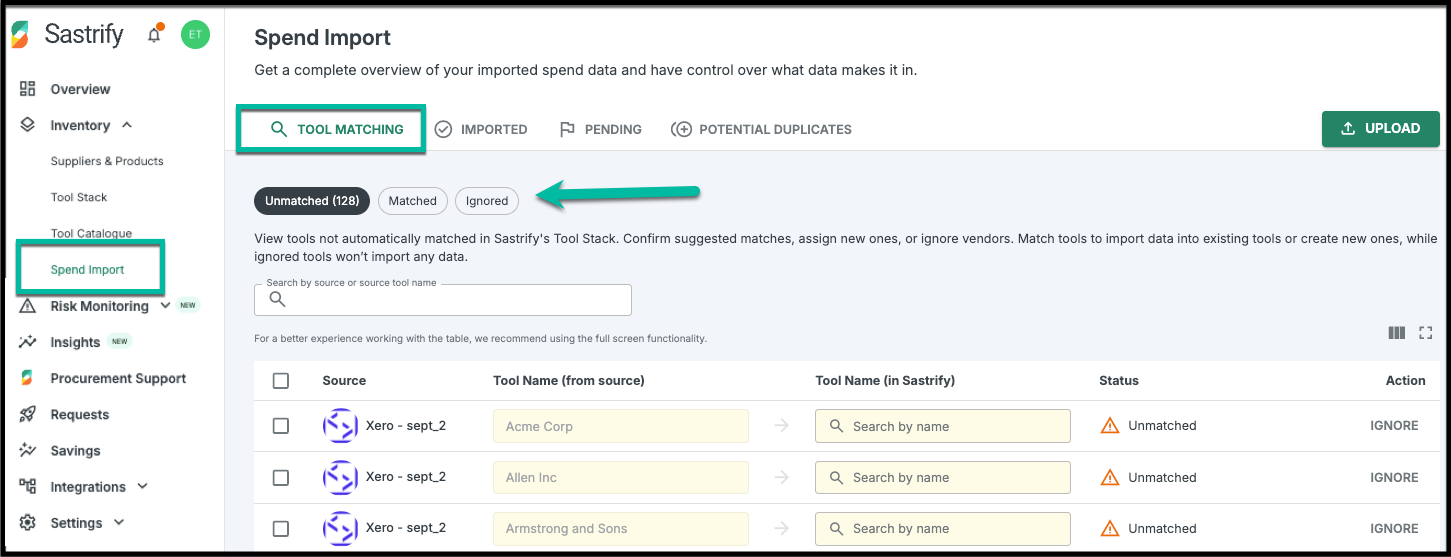
1. Unmatched
This tab lists SaaS products or suppliers found in your accounting data that Sastrify hasn't linked to your Tool Stack yet. Common reasons for unmatched status:
- Naming Variations between Sastrify and your ERP/accounting software.
- New Tools: You’ve recently purchased a new subscription of a SaaS product that isn't in our catalog yet.
- Non-SaaS Vendors: Accounting data often includes items like office supplies or travel that should be excluded.
How to resolve:
To Match: Use the dropdown menu to select the corresponding tool in your stack.
- To Create New: If the tool is legitimate but missing from Sastrify, you can create a custom subscription.
- To Exclude: Click Ignore for any non-SaaS vendors.


2. Matched
This tab is your "Archive" of successful matchings and connections.

3. Ignored
This section contains all vendors you’ve opted to exclude from Sastrify. Ignoring a vendor stops all future spend data for that specific name from entering your dashboard.
To Restore: If a vendor was ignored by mistake, click Restore to move it back to the Unmatched tab for proper mapping.

Frequently Asked Questions
Q: Does Tool Matching work with Identity Provider (IdP) discoveries?
A: No, Tool Matching is exclusively for financial data from ERP and accounting integrations.
Q: Why do I need to match vendors manually?
A: While Sastrify automatically matches the majority of vendors, there are some edge cases where a match can't be made. In these cases, manual review is necessary to ensure accuracy.
Q: What happens if I don’t match a vendor?
A: The spend data for that vendor will remain "orphaned." It won't appear in your total spend or on any tool pages, leading to inaccurate spend reporting.
Q: Is anything automatically matched?
A: Yes, Sastrify automatically matches the vast majority of common SaaS vendors. If a new SaaS product is identified and Sastrify is 100% certain of the match, it will even create the subscription for you in your Tool Stack.
Q: I cannot find the corresponding tool in the drop-down menu. What should I do?
A: Simply select "Create Custom Subscription." This adds the tool to your Inventory and instantly links the accounting data to it.
Did you find it helpful? Yes No
Send feedback