
Authentication & User Management
-
- Identity Provider (IdP): The Foundation of Sastrify Insights
- Uncover SaaS Usage and Shadow IT with Identity Provider (IdP) Discovery
- Integrating HRIS to Enrich Identities & Insights
- Admin Guide: Deploying the Sastrify Chrome Extension
- Admin Guide: Deploying the Sastrify Microsoft Edge Extension
- Manual Installation Guide: Sastrify Chrome Browser Extension
- Manual Installation Guide: Sastrify Edge Browser Extension
- Setting renewal dates & reminders
- Assigning & Modifying Subscription Owners
- Uploading & Managing Your SaaS Documents in Sastrify
- Sastrify App Support: Get Help & Give Feedback
- Sastrify's commitment to security and privacy standards
- Integrating HRIS to Enrich Identities & Insights
-
- Capturing Subscription Details with Contract AI
- Adding a New Subscription Manually
- Slack Integration: Bringing Sastrify into Your Internal Communication
- How to bulk upload your invoices
- Automating Document Uploads via Email Forwarding
- Managing Your Notification Preferences
- Tools and Spend Importer: Bulk Upload & Visualization
- Tool Matching: Aligning ERP Data with Your Inventory
- Managing Collaboration with Custom Tasks
- Task Automation: Standardizing and Automating Routine Actions
-
- Workflows: Automate procurement processes with consistency
- Requests: Streamline procurement process and internal approval
- Get Procurement Support for New Purchases and Renewals
- How to submit and track Procurement Requests via Jira Integration
- Scope of service: Custom benchmarking & contract review
- Scope of service: Negotiation & renewal support
- Scope of service: Custom SaaS Optimization Advisory
- Purchase your SaaS through the SastriMarket
-
- Connecting Your ERP & Accounting Software
- Spend Import: Validate and fine-tune your imported spend data
- Export spend data from Candis to Sastrify
- Export spend data from Spendesk to Sastrify
- Export spend data from Pleo to Sastrify
- Export spend data from Moss to Sastrify
- Export spend data from DATEV to Sastrify
- Export spend data from Ramp to Sastrify
-
- Configuring Authentication & Access
- User Management: Managing Users and Platform Roles
- Configuring Microsoft SSO Authentication
- Configuring Okta SSO Authentication
- Configuring JumpCloud SSO Authentication
- Configuring Cisco Duo SSO Authentication
- Configuring Cloudflare SSO Authentication
- Configuring OneLogin SSO Authentication
- Having trouble logging in?
- Understanding user roles and permissions
-
- Okta M2M Integration Guide
- Accounting & ERP: Connecting NetSuite to Sastrify
- Accounting & ERP: How to connect Quickbooks
- Accounting & ERP: How to connect Microsoft Dynamics 365
- Accounting & ERP: How to connect Workday ERP
- Accounting & ERP: How to integrate Pleo with Sastrify
- HRIS: Connecting Officient to Sastrify
-
- ERP & Accounting Integration FAQs
- SSO / IDP Discovery Integration FAQs
- Browser Extension FAQs
- HRIS Integration FAQs
- Usage Analytics FAQs
- Contract AI & Subscription Details FAQs
- Tools and Spend Importer FAQs
- Invoices FAQs
- Achieved Savings FAQs
- Form component guide for Sastrify form builder
- What is SaaS and Sastrify's scope of work?
- Who receives the renewal alerts or reminders?
- How does Sastrify work with currencies?
- Is the spend data from accounting export always up-to-date?
- How to work with benchmark prices
- When and how to involve Sastrify in a contract evaluation or negotiation?
- How does Sastrify interact with SaaS vendors?
- How do you handle confidentiality clauses in vendor contracts?
- Why is contract data essential for benchmarking and negotiation support?
Configuring Cloudflare SSO Authentication Print
Modified on: Tue, 24 Feb, 2026 at 12:48 PM
This guide walks you through setting up Cloudflare single sign-on (SSO) for logging into Sastrify.
Each step is outlined below.
IN THIS ARTICLE
- Step 1: Select the login method in Sastrify
- Step 2: Create an app in Cloudflare and generate credentials
- Step 3: Send credentials to Sastrify
- Step 4: Complete configuration in Cloudflare
- Step 5: Confirm setup and testing
Step 1: Select the login method in Sastrify
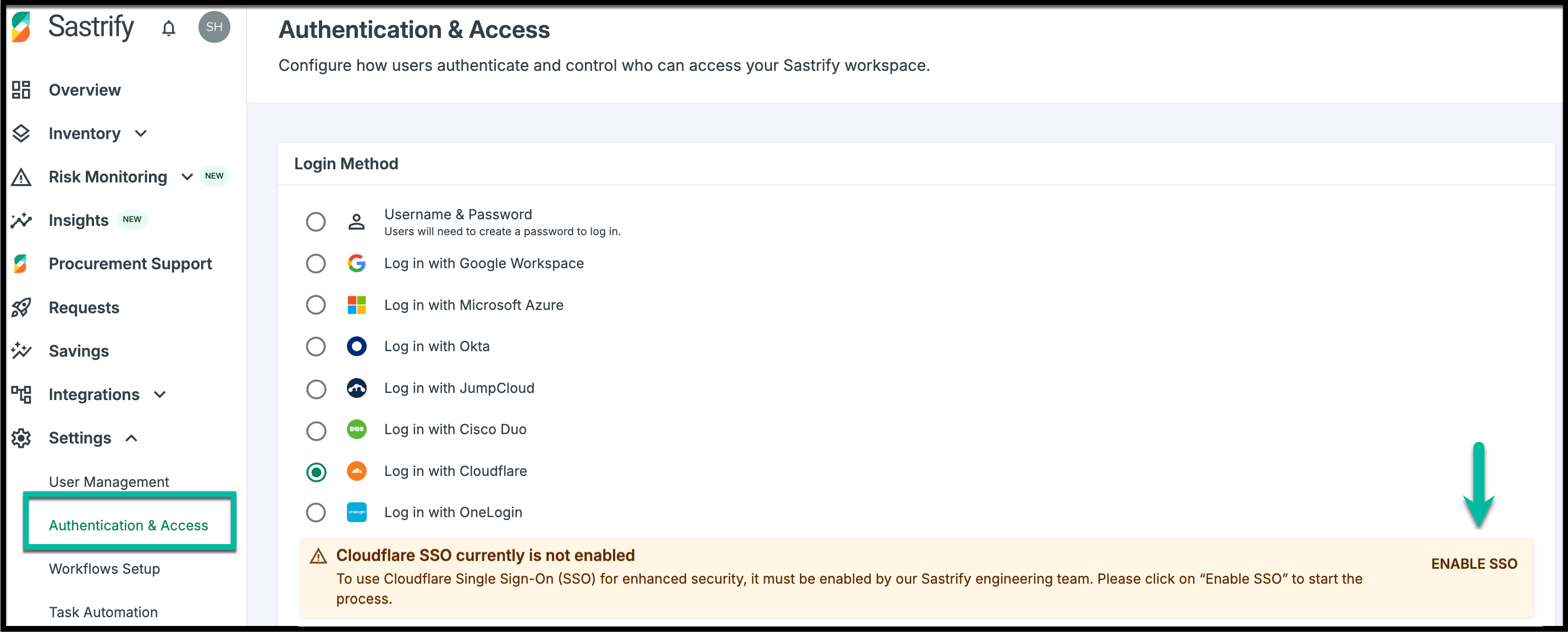
- Go to: Settings > Authentication & Access.
- Select "Login with Cloudflare".
- Click "Enable SSO".
Once enabled, you’ll see a confirmation message. This will also trigger an email from Sastrify with instructions to provide your Cloudflare credentials (see Step 3).
Step 2: Create an app in Cloudflare and generate credentials
- Sign in to your Cloudflare Zero Trust dashboard using your admin account.
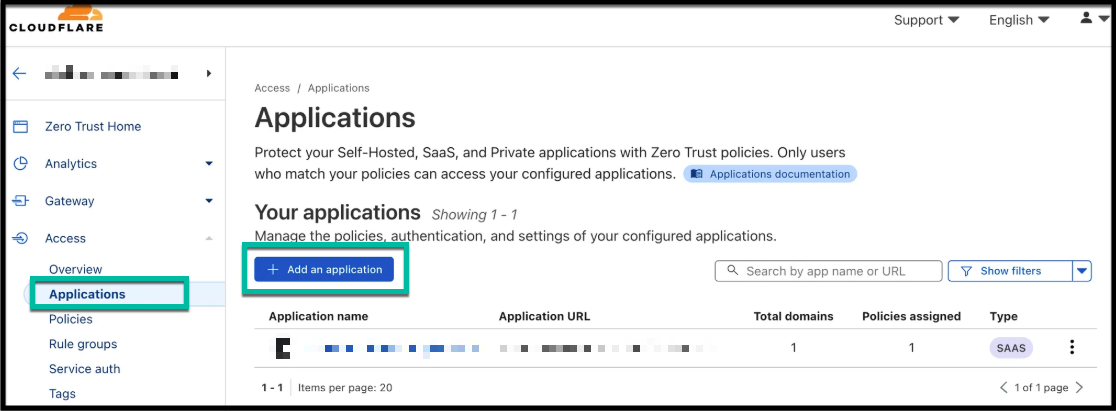
- Go to Access > Applications.
- Click + Add New Application.
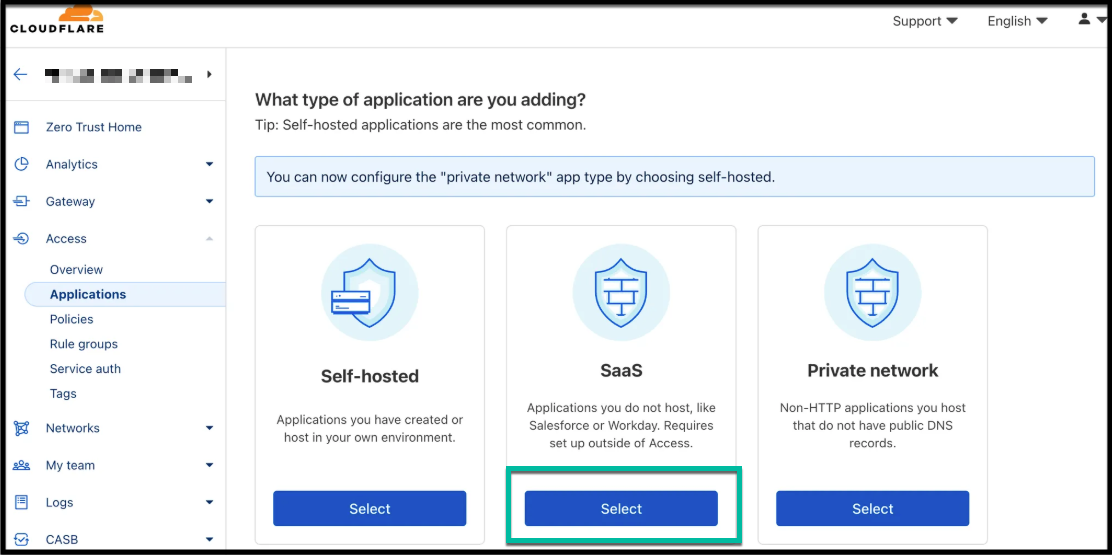
- Select SaaS under application type.
- Search for an existing application or enter a new application name (e.g., Sastrify-Auth0-SSO or YourCompanyName-Auth0-SAML).
- Select SAML as the authentication protocol.
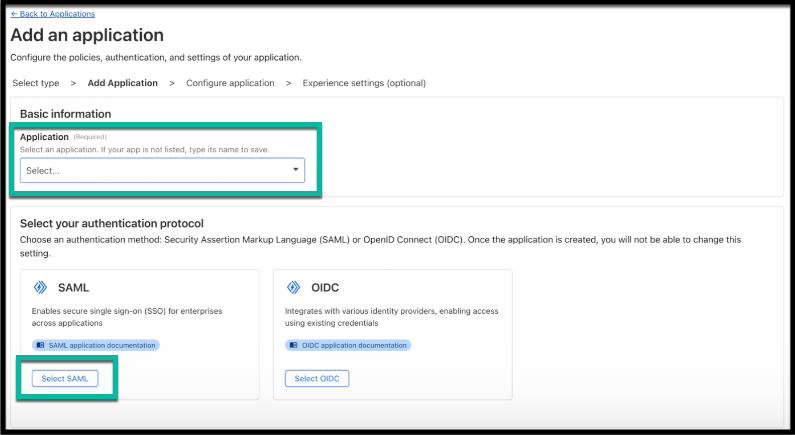
- Click the "Add application" button to initiate a generic SAML application setup.
- You can skip the following for now (you'll receive them in Step 3):
Entity ID
Assertion Consumer Service URL
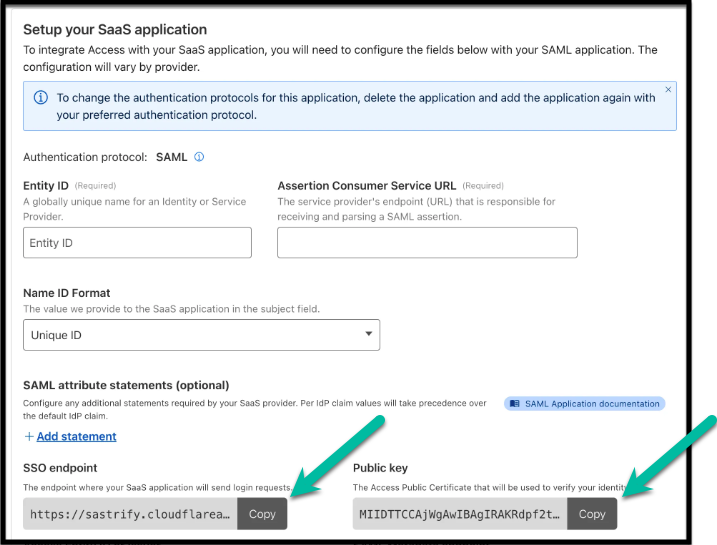
- Once configured and saved, Cloudflare generates the Identity Provider (IdP) metadata for your application.
- Copy the SSO endpoint URL and public key. You’ll need both for the next step.
Step 3: Send credentials to Sastrify
Reply to the email you received in Step 1 and include:
SSO endpoint URL
Public key
Once received, Sastrify will send back the following final configuration values needed to complete the setup.
Entity ID, e.g., urn:auth0:YOUR_TENANT_NAME:YOUR_AUTH0_SAML_CONNECTION_NAME
Assertion Consumer Service (ACS) URL, e.g., https://your_auth0_domain/login/callback?connection=YOUR_AUTH0_SAML_CONNECTION_NAME
Step 4: Complete configuration in Cloudflare
Once you receive the final values from Sastrify:
- Return to your Cloudflare Zero Trust dashboard.
- Search for the Sastrify application.
- Open the SAML application setup page.
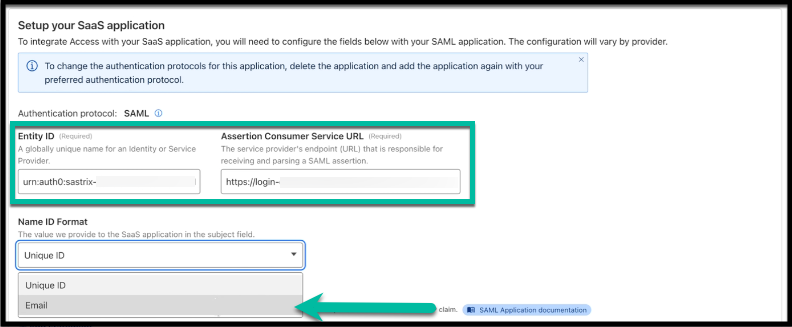
- Enter the Entity ID and ACS URL provided by Sastrify.
- Set Name ID Format to Email.
Once saved, your Cloudflare SSO integration will be complete.
Step 5: Confirm setup and testing
To finalize, reply to the same email thread and confirm that you’ve completed the SSO configuration in Cloudflare.
Our support team can run a quick test on your behalf to ensure that authentication is working as expected.
Did you find it helpful? Yes No
Send feedback