
Authentication & User Management
-
- Identity Provider (IdP): The Foundation of Sastrify Insights
- Uncover SaaS Usage and Shadow IT with Identity Provider (IdP) Discovery
- Integrating HRIS to Enrich Identities & Insights
- Admin Guide: Deploying the Sastrify Chrome Extension
- Admin Guide: Deploying the Sastrify Microsoft Edge Extension
- Manual Installation Guide: Sastrify Chrome Browser Extension
- Manual Installation Guide: Sastrify Edge Browser Extension
- Setting renewal dates & reminders
- Assigning & Modifying Subscription Owners
- Uploading & Managing Your SaaS Documents in Sastrify
- Sastrify App Support: Get Help & Give Feedback
- Sastrify's commitment to security and privacy standards
- Integrating HRIS to Enrich Identities & Insights
-
- Capturing Subscription Details with Contract AI
- Adding a New Subscription Manually
- Slack Integration: Bringing Sastrify into Your Internal Communication
- How to bulk upload your invoices
- Automating Document Uploads via Email Forwarding
- Managing Your Notification Preferences
- Tools and Spend Importer: Bulk Upload & Visualization
- Tool Matching: Aligning ERP Data with Your Inventory
- Managing Collaboration with Custom Tasks
- Task Automation: Standardizing and Automating Routine Actions
-
- Workflows: Automate procurement processes with consistency
- Requests: Streamline procurement process and internal approval
- Get Procurement Support for New Purchases and Renewals
- How to submit and track Procurement Requests via Jira Integration
- Scope of service: Custom benchmarking & contract review
- Scope of service: Negotiation & renewal support
- Scope of service: Custom SaaS Optimization Advisory
- Purchase your SaaS through the SastriMarket
-
- Connecting Your ERP & Accounting Software
- Spend Import: Validate and fine-tune your imported spend data
- Export spend data from Candis to Sastrify
- Export spend data from Spendesk to Sastrify
- Export spend data from Pleo to Sastrify
- Export spend data from Moss to Sastrify
- Export spend data from DATEV to Sastrify
- Export spend data from Ramp to Sastrify
-
- Configuring Authentication & Access
- User Management: Managing Users and Platform Roles
- Configuring Microsoft SSO Authentication
- Configuring Okta SSO Authentication
- Configuring JumpCloud SSO Authentication
- Configuring Cisco Duo SSO Authentication
- Configuring Cloudflare SSO Authentication
- Configuring OneLogin SSO Authentication
- Having trouble logging in?
- Understanding user roles and permissions
-
- Okta M2M Integration Guide
- Accounting & ERP: Connecting NetSuite to Sastrify
- Accounting & ERP: How to connect Quickbooks
- Accounting & ERP: How to connect Microsoft Dynamics 365
- Accounting & ERP: How to connect Workday ERP
- Accounting & ERP: How to integrate Pleo with Sastrify
- HRIS: Connecting Officient to Sastrify
-
- ERP & Accounting Integration FAQs
- SSO / IDP Discovery Integration FAQs
- Browser Extension FAQs
- HRIS Integration FAQs
- Usage Analytics FAQs
- Contract AI & Subscription Details FAQs
- Tools and Spend Importer FAQs
- Invoices FAQs
- Achieved Savings FAQs
- Form component guide for Sastrify form builder
- What is SaaS and Sastrify's scope of work?
- Who receives the renewal alerts or reminders?
- How does Sastrify work with currencies?
- Is the spend data from accounting export always up-to-date?
- How to work with benchmark prices
- When and how to involve Sastrify in a contract evaluation or negotiation?
- How does Sastrify interact with SaaS vendors?
- How do you handle confidentiality clauses in vendor contracts?
- Why is contract data essential for benchmarking and negotiation support?
Configuring Authentication & Access Print
Modified on: Tue, 24 Feb, 2026 at 11:45 AM
Managing your team's access is centralized within your account settings. This ensures that only authorized personnel can enter your environment while making the login process as frictionless as possible.
How to Access Authentication & Access Settings
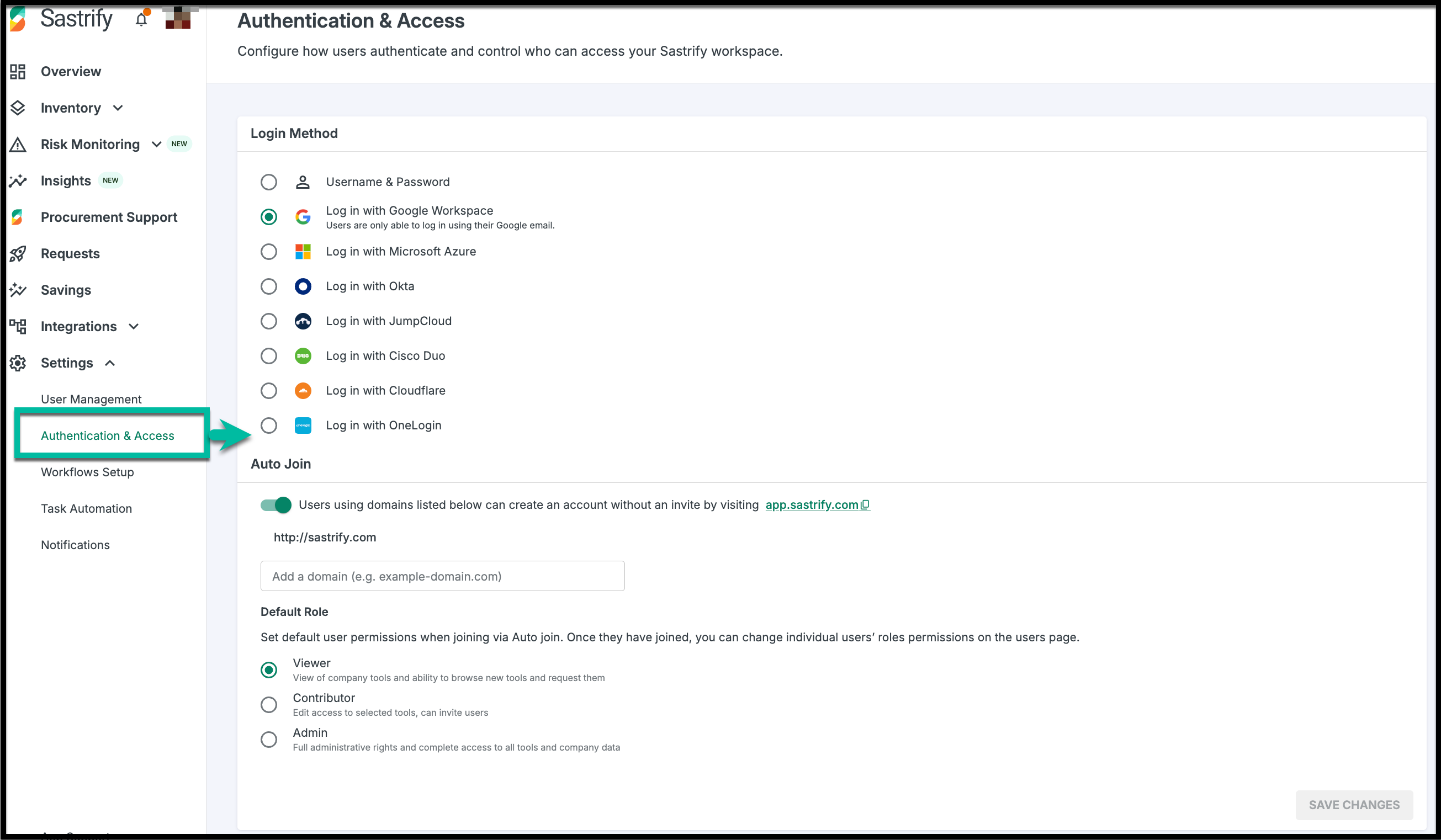
Navigate to Settings > Authentication & Access
This section governs three core components:
Login Method: Defines whether users use standard credentials (email/password) or Single Sign-On (SSO).
Auto-Join: A toggle to allow employees with your company domain to create accounts automatically.
Default Role: The permission level automatically assigned to users who join via Auto-Join.
Enabling Single Sign-On (SSO)
SSO is the recommended login method for enterprise security, allowing users to log in using their existing corporate credentials.
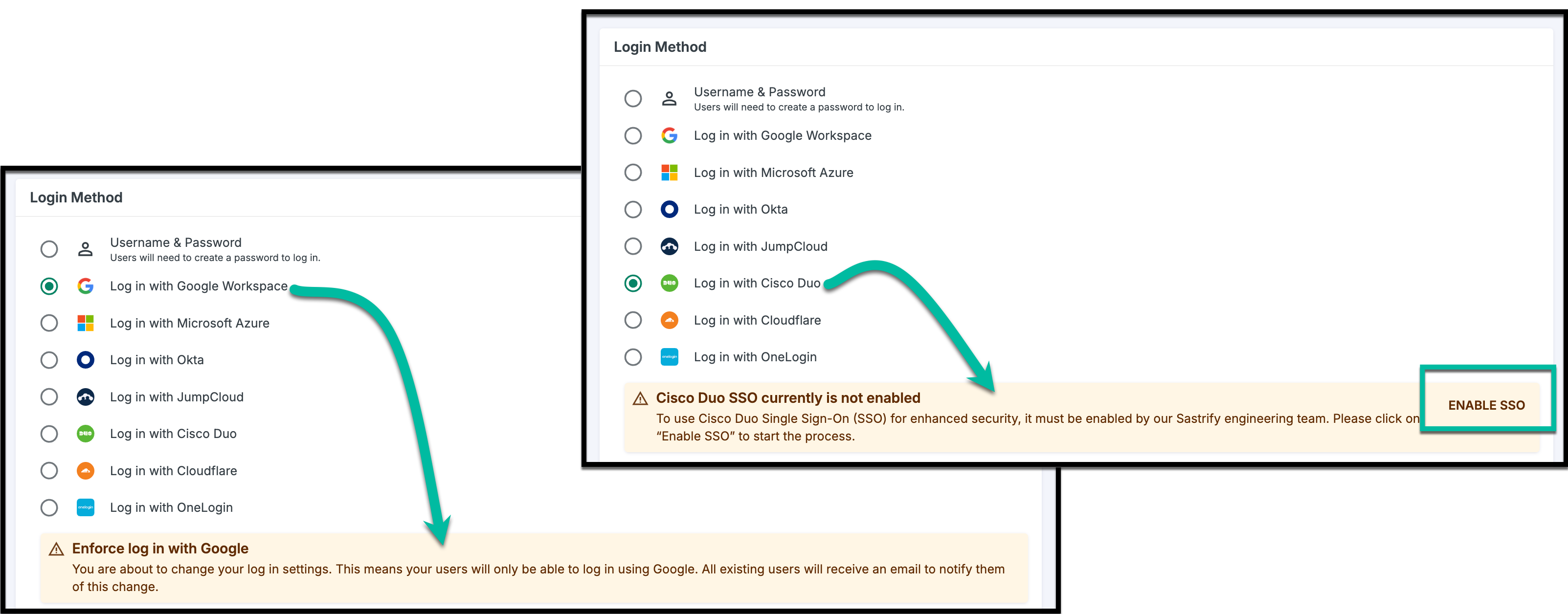
- Select your preferred SSO Provider.
For Google or Microsoft: SSO is enabled immediately. All existing users will receive an automated email notifying them of the change.
For SAML Providers (Okta, JumpCloud, OneLogin, Cisco Duo, or Cloudflare): These require a "handshake" between you and Sastrify. This setup involves a multi-step process. Sastrify’s engineering team will support you throughout the configuration, and additional actions may be required from your administrator.
Click Enable SSO to start the process.
Sastrify’s engineering team will start the technical configuration.
Click Save Changes.
If you are using a custom SAML provider, refer to these detailed setup steps:
Automating Access with Auto-Join
The Auto-Join function eliminates the need for Admins to manually invite every new employee. When enabled, any user who signs up with a verified company email domain is automatically added to your Sastrify instance.
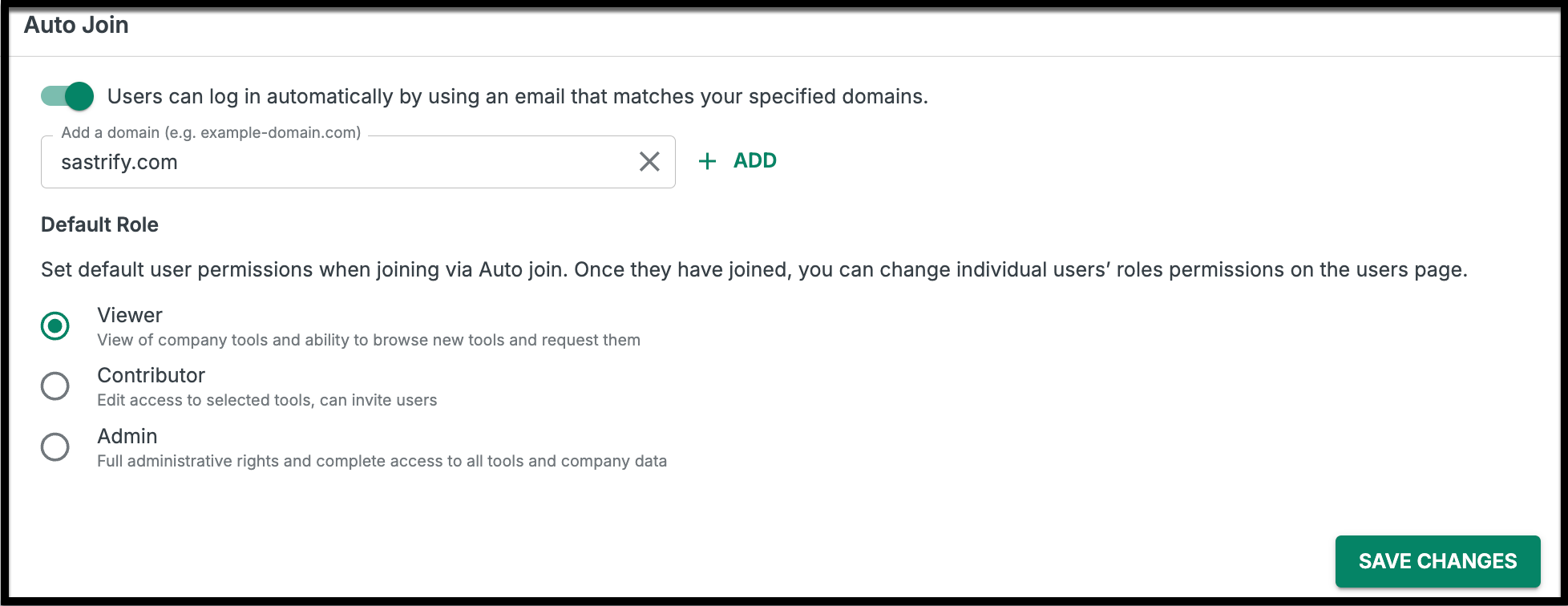
How to enable Auto-Join:
- Toggle Auto-Join to On.
Enter Company Domain: Provide the specific domain (e.g.,
companyname.com) that is authorized to join.Click + Add.
Set Default Role: Choose the initial permission level (Viewer, Contributor, or Admin).
Click Save Changes.
Pro-Tips for Admins
Domain Matching: Ensure your Auto-Join domain exactly matches your SSO domain to prevent login conflicts.
Role Management: While Auto-Join sets a default role, you can upgrade any user to an Admin or Contributor at any time from Settings > User Management.
SSO Enforcement: Once SSO is active, users will no longer be able to log in with a standard password, providing a more secure, centralized point of access.
Did you find it helpful? Yes No
Send feedback